Introduction
It’s fairly straightforward to call a .NET Framework library directly from Excel on Windows, particularly if you are using Visual Studio. You don’t need Visual Studio Tools for Office. However there doesn’t seem to be an easy guide on the internet anywhere. The Microsoft documentation is quite good on the subject, but can be a little confusing. This article is an attempt to redress the situation.
This article was updated in May 2020 to cover the latest versions of Visual Studio and Excel. The article was originally written in 2007 and will work with all versions of Visual Studio and Excel since that date.
.NET Core
The approach below will NOT work with any version of .NET Core or .NET 5. The last version of .NET this walk through will work with is the .NET Framework 4.8.
A Basic Walk Through
We’ll start by walking through a very basic example. We’ll get Excel to call a .NET method that takes a string as input (for example “ World”) and returns “Hello” concatenated with that input string (so, for example, “Hello World”).
1. Create a C# Windows Class Library (.NET Framework) project in Visual Studio called ‘DotNetLibrary’. It doesn’t matter which folder this is in for the purposes of this example.
2. To call a method in a class in our library from Excel we need the class to have a default public constructor. Obviously the class also needs to contain any methods we want to call. For this walk through just copy and paste the following code into our default class file:
using System;
using System.Collections.Generic;
using System.Text;

namespace DotNetLibrary
{
    public class DotNetClass
    {
        public string DotNetMethod(string input)
        {
            return "Hello " + input;
        }
    }
}
That’s it: if you look at existing articles on the web, or read the MSDN help, you might think you need to use interfaces, or to decorate your class with attributes and GUIDs. However, for a basic interop scenario you don’t need to do this.
3. Excel is going to communicate with our library using COM. For Excel to use a COM library there need to be appropriate entries in the registry. Visual Studio can generate those entries for us.
To do this bring up the project properties (double-click ‘Properties’ in Solution Explorer). Then:
i) On the ‘Application’ tab click the ‘Assembly Information…’ button. In the resulting dialog check the ‘Make assembly COM-visible’ checkbox. Click ‘OK’.
ii) On the ‘Build’ tab check the ‘Register for COM interop’ checkbox (towards the bottom: you may need to scroll down).
If you are working with 64-bit Excel then you may need to set the Platform Target in the Build properties to x64: thanks to danh for a comment to this effect.
4. Build the library. You need Visual Studio to be running as an administrator for this to work because it’s putting COM entries in the registry. If it’s not just right-click your Visual Studio icon and ‘Run As Administrator’.
5. Now start Excel and open a new blank workbook. Open the VBA code editor. This can be tricky to find: you have to get the Developer tab visible on the Ribbon if it’s not already set up. To do this click the File tab, then click Options, Customize Ribbon, and under ‘Customize the Ribbon’ make sure ‘Main Tabs’ is selected in the dropdown, and then check the Developer checkbox. Now click the Developer tab, then click Visual Basic.
6. We now need to include a reference to our new library. Select ‘References’ on the Visual Basic Editor’s ‘Tools’ menu. If you scroll down in the resulting dialog you should find that ‘DotNetLibrary’ is in the list. Check the checkbox alongside it and click ‘OK’.
7. Now open the code window for Sheet1 (double click Sheet1 in the Project window). Paste the VBA code below into the code window for Sheet1:
Private Sub TestDotNetCall()
Dim testClass As New DotNetClass
MsgBox testClass.DotNetMethod(“World”)
End Sub
8. Click anywhere in the code you’ve just pasted in and hit ‘F5’ to run the code. You should get a ‘Hello World’ message box.
Getting Intellisense Working in Excel
Whilst the VBA code above compiles and executes, you will discover that intellisense is not working in the code editor. This is because by default our library is built with a late binding (run-time binding) interface only. The code editor therefore doesn’t know about the types in the library at design time.
There are good reasons for only using a late-bound interface by default: with COM versioning libraries can become difficult with early-bound interfaces. In particular, if you change the early-bound interface by adding, for example, a method in between two existing methods you are likely to break existing clients as they are binding based on the order of the methods in the interface.
For similar reasons you are heavily encouraged to code your interface separately as a C# interface and then implement it on your class, rather than using the default public interface of the class as here. You then should not change that interface: you would implement a new one if it needed to change.
For more on this see:
However, we can build our library to use early bound interfaces, which means intellisense will be available. To do this we need to add an attribute from the System.Runtime.InteropServices namespace as below:
using System;
using System.Collections.Generic;
using System.Text;
using System.Runtime.InteropServices;

namespace DotNetLibrary
{
    [ClassInterface(ClassInterfaceType.AutoDual)]
    public class DotNetClass
    {
        public DotNetClass()
        {
        }
        public string DotNetMethod(string input)
        {
            return "Hello " + input;
        }
    }
}
If you change your code as above it will expose an ‘AutoDual’ interface to COM. This means it is still exposing the late-bound interface as before, but now also exposes an early-bound interface. This means intellisense will work.
To get this working:
1. Save your workbook and close Excel. Excel will lock the DotNetLibrary dll and prevent Visual Studio from rebuilding it unless you close it. Remember you need to save your new code module. Unless you are using a version of Excel prior to Excel 2007 you need to change the type: save it as type Excel Macro-Enabled Workbook (*.xlsm).
2. Go back into Visual Studio, change the DotNetClass as shown above, and rebuild the library. Note there’s a new ‘using’ statement as well as the attribute line.
3. Re-open your Excel spreadsheet. Once again if you are using a recent version of Excel there is an extra step: you need to explicitly enable macros. A warning bar will appear beneath the ribbon saying the ‘Macros have been disabled’. Click the ‘Enable content’ button and that should disappear.
4. Get the VBA code window up again (see item 5 above).
5. Excel can get confused about the interface changes unless you re-reference the library. To do this go to Tools/References. The DotNetLibrary reference should be near the top of the list now. Uncheck it and close the window. Now open the window again, find the library in the list, and re-check it (trust me, you need to do this).
6. Now run the code and it should still work (put a breakpoint in the routine and hit F5).
7. Enter a new line in the routine after the ‘MsgBox’ line, and type ‘testClass.’. When you hit the ‘.’ you should get an intellisense dropdown which shows that DotNetMethod is available. See below.
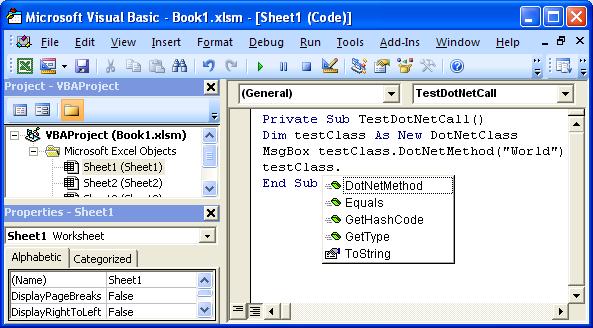
Let me re-iterate that this works and is fine for development, but for release code you are better off using the default late binding interfaces unless you understand the full versioning implications. That is, you should remove the ClassInterface attribute from your code when you do a release.
Deployment
In the example here we are using Visual Studio to register our .NET assembly on the workstation so that Excel can find it via COM interop. However, if we try to deploy this application to client machines we’re not going to want to use Visual Studio.
Microsoft have provided a command-line tool, regasm.exe, which can be used to register .NET assemblies for COM interop on client workstations. It can also be used to generate a COM type library (.tlb) separate from the main library (.dll), which is considered good practice in general. You can find regasm.exe in the .NET framework folder: C:\Windows\Microsoft.NET\Framework\v4.0.30319 or similar.
As usual with .NET assemblies you have the choice of strong-naming your assembly and installing it in the GAC, or of not strong-naming it and including it in a local path. If you have strong-named your assembly and installed it in the GAC all you need to do is bring up an administrator Visual Studio command prompt and run:
regasm DotNetLibrary.dll
If you have not strong-named your assembly you need to tell regasm.exe where it is so that it can find it to register it. To do this you need to run the command below, where c:\ExcelDotNet is the path where DotNetLibrary.dll can be found. This works fine, although it will warn you that you should really strong-name your assembly:
regasm /codebase c:\ExcelDotNet\DotNetLibrary.dll
Note that you can unregister an assembly with the /u option of regasm.
For more detail on this see https://docs.microsoft.com/en-us/dotnet/framework/tools/regasm-exe-assembly-registration-tool
Debugging into .NET from Excel
You may want to debug from Excel into your class library. To do this:
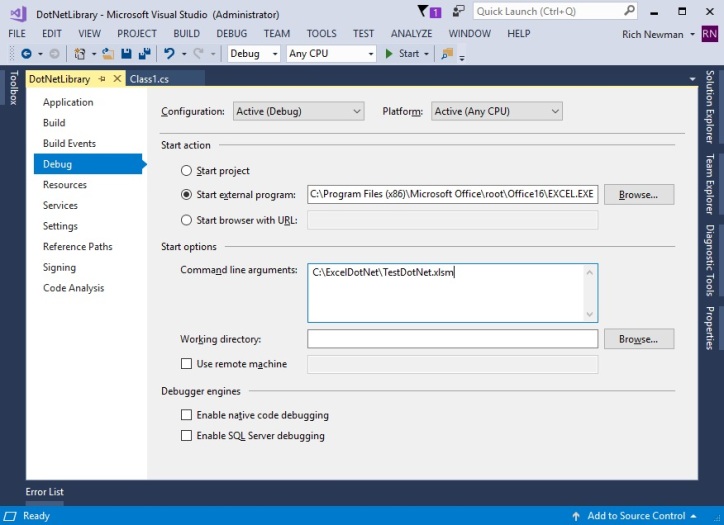
1. Using Visual Studio bring up the Properties window for the class library.
2. Go to the Debug tab and select the ‘Start external program’ option under ‘Start Action’. In the textbox alongside enter the full path including file name to Excel.exe for the version of Excel you are using (usually in Program Files (x86)\Microsoft Office\root\Office16 or Program Files\Microsoft Office\Office).
3. On the same Debug tab under ‘Command line arguments’ enter the full path including file name to your test workbook (the .xlsm file). Once you’re done it should something like below::
4. Now put a breakpoint in the code (in our example the sensible place is in method DotNetMethod) and hit F5 in the .NET project. The .NET code should compile and Excel should start with your workbook opened. If you now run the VBA code to call the .NET library again, as above, you should find that the code will break at the breakpoint you set in the .NET code.
Possible Problem with these Examples
One problem we have had with these examples is that Excel can get confused about which version of the .NET Framework to load if you have more than one version installed. If this happens you will get an automation error when you try to instantiate .NET objects at runtime from Excel. The .NET types will appear correctly in the Excel object browser.
The workaround for this is to tell Excel explicitly that the version of the .NET Framework that you are using is supported. To do this create a text file called Excel.exe.config and put it in the same directory as Excel.exe itself. The file should contain the text below (with the version number replaced with the .NET Framework version you are using):
<?xml version="1.0"?>
<configuration>
  <startup>
    <supportedRuntime version="v2.0.50727"/>
  </startup>
</configuration>
References:
Index page from MSDN
https://docs.microsoft.com/en-us/dotnet/framework/interop/exposing-dotnet-components-to-com
More on COM Interop from COM clients into .NET:
https://www.codeproject.com/Articles/7587/Exposing-COM-interfaces-of-a-NET-class-library-for
Guidelines for COM Interoperability from .NET
https://blogs.msdn.microsoft.com/heaths/2005/03/09/guidelines-for-com-interoperability-from-net-2/
Excel/.NET versioning problems
http://krgreenlee.blogspot.com/2006/01/software-running-excel-with-net-11.html

 Rich Newman
Thanks Rich, I’d been struggling to find a simple guide to this.
I’ve also been struggling to do this. Great guide, thanks.
Hi, Nice easy-to-follow example. I am getting some problem trying to use the DLL on a machine where Visual Studio is not installed. The machine in question has .Net Framework 2. I have used “regasm /codebase /tlb” to register it. When I try to use the DLL’s method from MS Excel, I get an error message “Runtime error -2147024984(80070002) Automation error the system cannot find the file specified”
Any idea what to do next will be appreciated.
I am not able to make the above steps work for a VBA project in Access. Are there other considerations I need to make with Access? Thanks in advance.
Joe
The steps are pretty much identical for Access. You’re not the only person who’s asked about this, so I’ve written a separate article on it at https://richnewman.wordpress.com/2007/08/25/a-beginner%e2%80%99s-guide-to-calling-a-net-library-from-access/
Had quite a bit of trouble. Firstly I needed:
http://support.microsoft.com/kb/908002/,
Then I could not debug and judging by:
http://support.microsoft.com/kb/836668/en-us
It dosn’t look hopeful.
Sean
Thank you for this article.
For those who have problems in instantiating the object in VBA, I just want to emphasize the point “Possible Problem with these Examples”.
Changing (or creating) the Excel.exe.config file solved this problem in my case and it was hard to find the solution.
So check your Runtime version in “help\about Microsoft visual Studio” and verify your Excel.exe.config:
Great article – thanks!
I am not able to open sheet1 by default when opening excel. It is opening sheet2 since last week i.e. 17/09/07. Pls help me
I can’t get it work. i am using VS 2005. this is the error I got when trying to build it:
C:\WINDOWS\Microsoft.NET\Framework\v2.0.50727\Microsoft.Common.targets(2720,9): error MSB3216: Cannot register assembly “C:\C#\Submit\DotNetLibrary\DotNetLibrary\bin\Debug\DotNetLibrary.dll” – access denied. Access to the registry key ‘HKEY_CLASSES_ROOT\DotNetLibrary.DotNetClass’ is denied.
If I uncheck the ‘Make assembly COM-visible’ option, I will be able to build it. However, when call it from VBA, error out as: ‘Can’t find entry point’.
Please comment. Thanks.
On the ‘Build’ tab uncheck the ‘Register for COM interop’ checkbox (towards the bottom: you may need to scroll down).
Great Article. All my non static methods show up. However, how would i call a static C# method from VBA from Excel 2003. Any idea, i am struggeling not being the most sophisticated VBA programmer myself. THX! frank
Thanks for this article. It was the most helpful I found to get me calling a VB.Net dll from Excel.
I’ve been having a heckuva time with getting a managed Excel automation add-in without VBA. So far everything works on my development system but not on a deployment workstation – I found this blog because I’m looking into the Excel.exe.config issue – thanks for the details! My experience is documented on my blog at the link below. Maybe it will help someone here, and any assistance is welcome and appreciated.
remove.mungeNebula-RnD.com/blog/tech/2007/11/excel-tools1.html
Hi,
I found this article very useful and informative. I am facing a problem i.e. I have to pass an array of strings form VBA to .Net assembly but I am getting a runtime error ‘450’. Any ideas?
Thanks in advance
Have you tried to fire events in the .NET code and create handlers for them in the VB(excel) code? Any luck on that one?
Thanks, a lifesaver (I mean the article), everything was solve with the .exe.config
Thanks,
nice and easy tutorial.
Hi ,
Thanks a lot for this great illustration. I followed the instructions to call the C# component from MSWORD 2003 VBA subroutine and works fantastically well.Thanks again.
Rich, A nice article – its simple and dare I say elegant.
Have you done this for Visual C++
I want to apply this to to a C++ library that I have written so I tried a small C++ example using a public ref class – a rework of your C# example.
But the C++ library does not show up in the VBA reference pane. I can get a C# library to pass the call to C++ but cannot see the C++.
An interesting symptom that I get is – I tried to use ILmerge to combine my C# small dll with my C++ dll. ILmerge complains that the C++ is not marked as managed code.Any thoughts would be very welcome.
Thanks
Rob
Very interesting article, many thanks!!
I would recommending reading this article though:
http://blogs.gotdotnet.com/heaths/archive/2005/03/09/391358.aspx
since some of the recommendations made here are not recommended short cuts as it appears here.
Excellent article – very clear.
I work in an office environment where we don’t have authorization to drop files into the Excel path. Is there any other way of telling Excel to use the 2.0 version of the framework? This article
http://msdn2.microsoft.com/en-us/library/y89ktbw6.aspx
says Excel should use the latest version by default, and you need a config file if you want to use an earlier version. However, this contradicts what I am seeing (and, apparently, the experience of many users on this board.)
Thanks for any info you can provide.
Alternative to Excel.exe.config
I actually found a solution to comment 22 (my own question). To recap – Excel really should use the latest installed version of .NET by default. If its not, it’s because something is telling it to use an older version. While using the Excel.exe.config is one solution, it may not be practical for many, and really only disguises the problem. The key as usual, is the registry. Specifically, check for:
HKEY_LOCAL_MACHINE\SOFTWARE\Microsoft\.NETFramework\policy\AppPatch\v2.0.50727.00000\excel.exe\{2CCAA9FE-6884-4AF2-99DD-5217B94115DF}
You should see a value named “Target Version” and Data = “v1.1.4322”
This is why Excel is using the older Framework. Removing or renaming this key should solve the problem.
I have had to do this several times but infrequently enough to have to look it up each time. This is by far the best guide I have ever seen about this. You have the dubious honour of being adding you to my “Useful” folder in my favourites. Thanks for making the effort to share.
The targeting of .net 1 is unintended behaviour for office 2003 and beyonde according to the following blog: http://mcfunley.com/cs/blogs/dan/archive/2006/02/07/947.aspx
A patch is available (see blog).
Great article!!!
Thank you for a very helpful post. FYI, I have been struggling with the first section (“A Basic Walk Through”), which mysteriously refused to work for a while, for reasons which seem to be related to .Net 3.5. I finally got it to work, by explicitly targeting .Net 2.0 (I am using Visual Studio 2008 / .NET 3.5 / Office 2003) and adding the Excel.exe.config file with matching version as you describe, and it worked.
Do you know if there are indeed specific issues related to .Net 3.5, or is it by sheer luck that I resolved the problem 🙂 ?
Cheers,
Mathias
I’ve tried this with VS 2008/.NET 3.5/Office 2003 Pro and it still is balking. I’ve tried the targeting of .Net 2.0 and the Excel.exe.config file but still not working. I can see the type with intellisense but when i run the code, I get an object not found error (#91).
It is a very interesting article, however and I’m sure it is on the right path. I just need to find where I’ve wandered off of it.
Duh. I missed the “NEW” in step seven where the testClass is declared.
Dim testClass As New DotNetClass
Hi – Thanks so much for writing this article, I have had a hard time getting rid of the automation error I kept receiving due to my PC having several development environments installed. Your comment re. the Excel.exe.config file solved my problem! -Kenneth.
This is the best article I have found on this subject.
Your approach is excelent and provides the basic info that thoses of us with just a little experience needs.
I had tried another example, and they left out the explanation for several lines of code which it appear wasn’t needed anyway, but was keeping me from getting their sample to work.
Hope you publish more work such as this.
The better we understand the basics, the more successful our projects will be.
Thanks for the article and the links to other articles. The article on guidelines for com interop is particularly interesting.
I’ve just spent the past few hours trying to solve the same problem as Hongus posted earlier – denied access to the registry. I suspect it’s a VS2008 issue. In case anybody else has the same trouble, I solved it by, on loading VS2008 from the start menu, right-clicking the icon and selecting ‘Run as Administrator’.
I’m surprised this made a difference as I use an administrator account on my machine and have all the correct permissions for the registry. But it did the trick.
Also, another snag I encountered is that my VS2008 appears to set the ComVisible assembly attribute (in the AssemblyInfo file) to false, which hides all the code in the assembly from COM. Adding the attribute [ComVisible(true)] to the class overrides this.
Magnificent article, the Excel.exe.config sorted me out. I had been going mad all day. Thanks!
Wonderfull article! This is all i want to start with. I was stuck for 2 days, referred to a lot of websites to find an answer. I got some idea that was complicated.The VB.NET class attribute ” _” gave a breakthrough. But this is even simpler. I wonder why i dint find this post so far.
Really excellent, a big thanks to your brain and your R&D. Very clearly mentioned the procedure in you blog, again thanks for that.
Hello,
Thanks for your article. You explain very well. as for a French 🙂
Error 430 Class does not support Automation or does not support expected interface.
I have tried every trick in the book. I have followed this article to the T but is still get the above error. I am getting intellisense on the client machine, which means I can see the class, but it does not work.
Please help!
Shri
Hi,
I figured out the problem mentioned above. I had deployed the assembly on the LAN and I had trust issues in the client machine. Now I have a new problem.
After deploying the dll over the LAN I get a Runtime Error 80131700 Automation Error. I am using Excel 2003
I forgot mention, I am using VS2008 with .Net 3.5 SP1. I also strong named my assembly, so that issue should not be there.
Indeed, the best article in order to get started with C# Excel interaction. However, one minor point is missing. How to handle events if they fired in C#? Solution to that may allow to utilize multi threading in C# and do calls asynchroniously from Excel. So far I found nothing on this subject. Any suggestions?
Thanks again,
Sergey
I created a class that holds the array collection. We just need to return the class object after populating the arrays.
Clase aArr
{
double [] abc;
private setValue(double[] values)
{
this.abc = values;
}
}
caller Code
aArr objArr = new aArr();
objArr.SetValue(PopulateddoubleArray);
return objArr;
Hope this helps you.
This answer for Rakesh. Sorry for confusion.
I was able to implement this But the proble is when You try to retrun an array or Object It throw you and Exception on VBA side. Has anybody tried to implement that. Here;s My code.
using System;
using System.Collections.Generic;
using System.Text;
using System.Runtime.InteropServices;
using System.Reflection;
[assembly: ComVisible(true)]
[assembly: Guid(“37496b5c-462a-4547-b57e-d9063256e443”)]
[assembly: AssemblyVersion(“1.0.0.0”)]
[assembly: AssemblyFileVersion(“1.0.0.0”)]
namespace ExcelFunc
{
[ClassInterface(ClassInterfaceType.AutoDual)]
public class Functions
{
public double[] Add(double a, double b)
{
double[] ar = new double[1];
ar[0] = a + b;
return ar;
}
}
}
Function add_num()
Dim f As New Functions
Dim x() As Double
x = f.Add(1, 1)
End Function
Here ya go as requested.. hope you enjoy free xxx video Adult Free Video Free Porn Video Free Adult Video
Redtube
The Excel.exe.config issue had me pulling my hair out! Thanks much!!
First of all Very good tutorial. It is clear you understand this very well, I’m hoping you also understand my similar problem and can point me in the right direction.
I am working with Visual Studio 2008 VB .net and Excel 2003 (and 2007 but that’s another problem)
I would like to know what it would take to build a “Self-Registering” dll which contains an or multiple object which can be placed within the excel sheets as ole objects.
Thanks in advance.
A very interesting article indeed. Specially you solved my problem by creating the config file for Excel.exe.
I am having problems with building an installer for this dll to deploy somewhere. if you could help.
It is a nice article. I need help to understand the procedure to handle ActiveX control in a DLL. Actually, VB.NET permits to keep the ActiveX controls and ActiveX components in the same DLL.
I would like to know if there is any procedure to use the ActiveX control from a DLL in Excel.
Thanks. Any help is appreciated.
nice article
Hi for those with the automation error. I think you will need to make sure your dll is in the same folder as your tlb and that your other assemblies that are not in the GAC are present in the folder when you run the regasm /codebase *name of dll* /tlb
Hi All,
I am trying to implement this in VS2008 with vb.net. I think that I have translated the code from CS to VB correctly but when I build I get an error message:
“A project with an Output Type of Class Library cannot be started directly. In order to debug this project, add an executable project to this solution which references the library project. Set the executable project as the startup project.”
Can anyone suggest how I might implement a vb.net class library in Excel VBA.
Thanks,
Bernie
Excel automation
http://vb.net-informations.com/excel-2007/vb.net_excel_2007_tutorials.htm
gever.
Thanks – was great help !!!
Very nice article.
What about Excel 2010 and .NET 4?
Hi,
Thanks for the article. I can get everything to work okay, but only if I create the object in Excel VBA as follows:
Dim libObject As Object
Set libObject = CreateObject(“CSharp_ExcelLibrary.ExampleObject”)
If I were to use:
Dim libObject As New ExampleObject
then I get a ‘run-time 430’ error (class does not support automation or expected interface), whenever I go to use a method (although I get intellisense, etc).
To add to the confusion, if I implement the Excel.exe.config file recommendation, then neither approach works (I then get ‘run-time error -214623576 (80131700)’).
Both of the above phenomenon occur with both Excel 2007 and Excel 2003. I am building using VS 2008 and .Net v3.5 SP1 (in the Excel.config.exe file I just reference v3.5). I have compiled this on two seperate machines, with the same results each time.
Any help would be greatly appreciated!
Thanks,
Alex
Alex, thank you so much for this post – I know it’s years old but maybe you’ll see my thanks!
Did you ever discover *why* this worked this way?
Perfect! Thanks so much!
Thank you Rich. The [ClassInterface] attribute was missing, from the other examples I found, for getting Intellisense to work. FYI this just worked for me in Windows 7 Pro, DOTNET 4, Access and Excel 2007. Judging from the age of the original post we are still finding this useful. Thanks again!
Thank You Very Very Very… Much !!!!!!
Article is very simple and step by step to understand 🙂
A great read. Bookmarked! =)
Thanks!
nice man save my day
Works!!!
I’m using Office 2010 VS2010 C# Express. I’m an engineer, not a programmer, but I’ve written a lot of code for my job.
1. Adrian’s comment above (shown below) came in handy.
“I’ve just spent the past few hours trying to solve the same problem as Hongus posted earlier – denied access to the registry. I suspect it’s a VS2008 issue. In case anybody else has the same trouble, I solved it by, on loading VS2008 from the start menu, right-clicking the icon and selecting ‘Run as Administrator’.
2. Then had to use the Intellisense version of the code that Rich Newman posted.
How can I create custom functions (built from VS C#) to add to Excel’s collection of functions?
-Noel
Very nice & simple!!!
Very Informative. Thanks! My C# library runs from VBA.
But I could not debug it. I set the project Debug properties, external program etc. and when I run it, it does not break at any of my breakpoints in the C# code.
Any help appreciated!
Using VS2010.
Thanks
Ap
Fantastic! – This really saved me alot. Thanks for sharing the work. Martin S.
Doesn’t work on Office 2010 64-bit with .NET framework v4.0.30319. In VBA, I get “Runtime error 429: ActiveX component can’t create object.”
You have to specifically compile the c# code as x64 else is it compiled as x32 which 2010 x64 is incompatible with
Thank you! Very good!
Thank you, this saved me a great deal of time. Well written guide.
PS I am using Office 2007 on Windows 7, with VS 2010 (.NET framework v4.0.30319).
How to go about packaging & deploying this COM component to other machines? Thanks!
Thanks for this article, it helped me debug into my class library from my Excel client. I struggled for awhile, and finally learned that a space character in a folder name in the .xlsm file pathname was causing my error. Renamed the folder w/o the space, changed my Command Line Argument to the new path name, and it worked like a charm. Check for space characters in your command line argument path if you continue to have problems launching a workbook client from VS.
Echoing the notes of thanks – this worked well for me and one of the projects I’m working on.
Thank-you for this article. I’ve been using this approach succesfully for a number of years and the Intellisense bit was new for me. I do have a problem now though – the approach has flat out stopped working since I upgraded to a new machine. I’m running Windows 7 64 bit Professional, VS2010, the 64 BIT version of Excel and .NET4 and I can’t instantiate the C# object from VBA. Everything else works just fine – I can add the reference to my type library and the the class and methods but my VBA code bombs with the dreaded “Active X Component can’t create object” error. There are two changes in my environment – O moved from .NET 3.5 to 4 and I moved to the Office 2010 64 bit app from the Office 207 32 bit (I’m pretty sure Office 2010 32 bit worked just fine too. I have tried the Excel.exe.config and registry key fixes to no effect. Anyone have any ideas?
Having the exact problem (64-bit-Office 2010 and with no problem on 32-bit). Still trying to figure out, but was able to achieve a temporary fix:
In my case, looks like the installer is replacing the tlb but not the dll.. deleting the dll, tlb & ‘Repair’ the program from Control Panel worked.While on some other machines, just manually registering the dll/tlb (Regasm.exe) worked.
Hope this helps.
ap
This is the one article on the entire Internet that tells me what I needed to know on this subject!
Many thanks.
Having the same issue with 2010/64-bit (“Active X Component can’t create object” error). Any further progress by anyone on this?
For everyone having problem with 64bit Office:
Are you sure that you used 64-bit RegAsm.exe?
Also having same problem on 2010/64 bit (error 429: Active X Component can’t create object). Still searching for a solution.
Using VS Express 2012 and Excel 2010. In Excel VBA References I can browse to DotNetLibrary.dll, but get the error “Can’t add a reference to the specified file”. Any suggestions?
Because you should not browse. You should SELECT it. If it is registered for COM interop – it will be there in the list.
Could you explain the reason causing versioning problem with early binding? Is the v-table in the new “produced” .tlb file after class redesign not properly created?
One of the best article. Well written guide.
Hi Thanks for the procedure. It helped me to some extent. but i am getting the following error “The system cannot find the file specified”. Please note that i am using DLL in another machine. i am able to use dll in the machine which i performed build but not in other machines.
Thanks a lot! Finally a great tutorial!
Great! It works with VS2010Express C#!
Wow, this is step is really crucial. It cost me ages to figure it out:
“5. Excel can get confused about the interface changes unless you re-reference the library. To do this go to Tools/References. The DotNetLibrary reference should be near the top of the list now. Uncheck it and close the window. Now open the window again, find the library in the list, and re-check it (trust me, you need to do this).”
Thanks a lot for posting this.
If you are following the example here, be careful copying and pasting code from step 7 because it is not formatted as code. If you copy the example VBA into Excel, for example, the code will likely fail because it pastes “World” which is not a VB string. Change it to “World” (quotes). Otherwise you will notice you just get a MsgBox with just “Hello “.
Annnd… wordpress auto-changed the quotes in my comment. You need quotation marks, not a left double and right double quotation mark.
I’ve fixed this in the article now, sorry about that.
Hi Rich,
Do we have same support without using Excel Interop, I mean to say we have “Spreadsheetgear” dll which perform Excel operations without importing Excel interop
I’m not quite sure what you’re asking? The example shown here doesn’t need any Excel interop dll, but of course all it does in .NET is string manipulation. However, if all your .NET code is doing is handling data you can call it and make your VBA interact with the spreadsheet itself.
It you want your .NET code to work with spreadsheet objects then you are going to have to tell it about them, and that’s usually (and most easily) done with the Excel interop assemblies.
Great, thanks – this was very useful. This worked for me with Windows 10, Excel 2016 and Visual Studio 2013. I needed to create the type library file before I could see the reference in Excel VBA
This seemed like a very nice and straightforward explanation; I went through it step by step. However, after adding the reference (my library appears as noted above, and I checked the box), I tried running the same little VBA snippet, and I get a pop-up error saying
Compile error: User-defined type not defined
This is the exact same VBA error that I have been getting after trying several other approaches I’ve seen on line (including using GUIDs, regasm, etc). I am using Visual Studio 2017 Community, and Excel 2016, on Windows 10.
I’m really at my wit’s end here trying to do what should be a fairly simple task. Any help would be greatly appreciated. Thanks in advance!
OK, it seems to work now. I read somewhere else that one should explicitly set the Platform Target in the Build properties to x64. After making this change, it works. I noticed another comment above that mentioned this.
wow.wow.now it work in excel 64bit.Thanks you so much danh
This not work in excel 64bit.canot call the sub procedure so we cannot deployment continous.so sad..
You can try ZetExcel.com. It is very useful and easy to use.
THANK YOU Rich – Exactly what I was looking for! Just the right amount of detail for me – not too elementary and yet not too bogged down in minutia…
Hi, i just joined. I am trying to learn C# the fastest way possible.Currently i am using Zet Excel platform. Any suggestions that can help me ? I need to boost my coding